MuMu Player 12 is a fast, lightweight Android emulator developed by NetEase — one of the world’s largest gaming companies. Built on Android 12, it lets you run any Android app or mobile game directly on your Windows PC or laptop, completely free. With support for up to 120 FPS, ultra-low input latency, and a surprisingly small system footprint, MuMu Player has quickly become one of the most popular Android emulators for PC gamers worldwide.
Whether you want to play Clash Royale, PUBG Mobile, Free Fire, Mobile Legends, or any other Android game on a bigger screen, MuMu Player delivers a smooth, console-like experience right on your Windows 11 or Windows 10 desktop. This guide walks you through everything — from downloading and installing MuMu Player to configuring it for the best possible performance — in just a few minutes.
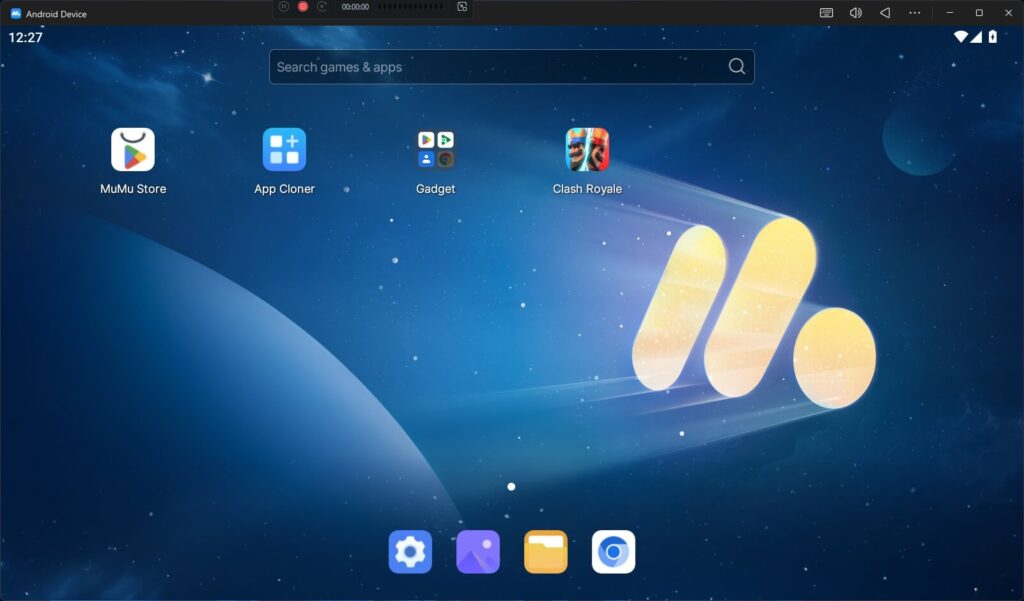
MuMu Player 12 running on a Windows PC with support for Android 12, keyboard mapping, and up to 120 FPS gameplay.
What Is MuMu Player?
MuMu Player (also known as MuMu App Player or NetEase MuMu) is a free Android emulator for Windows PC and Mac, developed by NetEase Games. The latest version, MuMu Player 12, is based on Android 12 — one of the most up-to-date Android versions available in any emulator — giving it access to the full modern Android app ecosystem and the latest game updates.
Unlike some emulators that were originally built for productivity, MuMu Player was designed from the ground up with gaming performance in mind. It uses a highly optimized virtualization engine that squeezes out maximum FPS while keeping CPU and RAM usage low — which means it runs great even on mid-range laptops and older desktops.
The older MuMu Player (based on Android 6) has been replaced by MuMu Player 12, which runs Android 12 and delivers significantly better performance, compatibility, and graphics quality. Always download MuMu Player 12 for the best experience in 2026.
Key Features of MuMu Player 12
Here’s what makes MuMu Player 12 stand out from other Android emulators:
- Up to 120 FPS: Enjoy ultra-smooth gameplay with support for both 60 FPS and 120 FPS modes. Perfect for competitive mobile games where fast reactions and fluid visuals matter.
- Android 12 Powered: Built on the latest Android 12 architecture, ensuring excellent compatibility with modern apps, new game releases, and future updates.
- Multi-Instance Support: Run multiple emulator windows at the same time. Play different games simultaneously or manage multiple accounts with ease.
- Advanced Keyboard & Controller Support: Customize keyboard mappings, use mouse controls, or connect USB and Bluetooth gamepads. Devices are detected automatically for a seamless gaming experience.
- Low-Latency Performance: Featuring an optimized rendering engine that reduces input delay and improves responsiveness for smoother, more accurate gameplay.
- Lightweight & Efficient: Designed to consume fewer system resources than many other Android emulators. Delivers stable performance even on PCs with only 4 GB of RAM.
System Requirements
| Component | Minimum | Recommended |
|---|---|---|
| OS | Windows 7 (64-bit) | Windows 10 / 11 (64-bit) |
| CPU | Intel Core i3 / AMD Ryzen 3 | Intel Core i5 / Ryzen 5 or higher |
| RAM | 4 GB | 8 GB or more |
| GPU | Intel HD Graphics 4000 | Dedicated GPU (NVIDIA / AMD) |
| Storage | 5 GB free disk space | 10 GB+ free (SSD preferred) |
| Virtualization | VT-x / AMD-V enabled in BIOS | VT-x / AMD-V enabled in BIOS |
| Internet | Stable broadband connection | 10+ Mbps for online games |
How To Download and Install MuMu Player 12 in Windows 11/10
Follow these steps to get MuMu Player 12 installed on your Windows 11 or Windows 10 PC:
Step 1. Visit the official MuMu Player website and download the latest version for Windows.
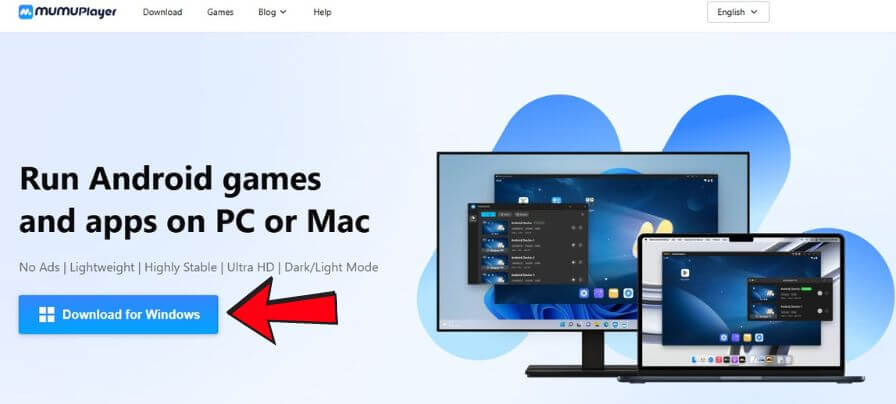
Step 2. Open the downloaded installer. If Windows asks for permission, click Yes to continue.
Step 3. Click Install Now and wait for MuMu Player to be installed on your PC.
Step 4. Once the installation is complete, click Start Now or open MuMu Player from the desktop shortcut.
Step 5. Wait for the emulator to finish loading. The first launch may take a minute or two. After that, you’re ready to install apps and games.
If MuMu Player runs slowly, hardware virtualization may be disabled on your PC. Restart your computer, enter the BIOS settings, and enable Intel VT-x (for Intel CPUs) or AMD-V/SVM (for AMD CPUs). Enabling virtualization can significantly improve emulator performance and reduce loading times.
Conclusion
MuMu Player 12 is one of the best free Android emulators available in 2026 — and the setup takes less than 5 minutes. Whether you’re playing Clash Royale, PUBG Mobile, or any other Android game, you get a smooth, full-screen experience on your Windows PC at no cost.
Have questions about the setup or running a specific game? Drop a comment below — we read every one.